3.3 Creating a Google Cloud Environment with Terraform
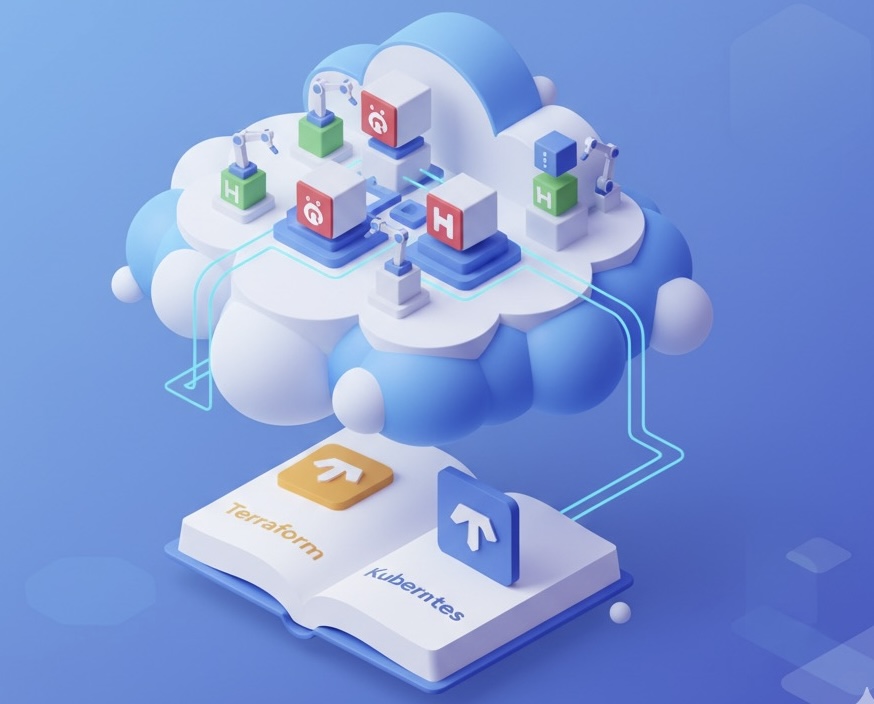
Kubernetes in the Cloud: Building Your Google Cloud Playground with Terraform
So, you're diving into the world of Kubernetes? Awesome! But before you can deploy containers and orchestrate your applications, you need a place to do it. That's where cloud environments like Google Cloud Platform (GCP) come in.
This blog post will guide you through setting up a Kubernetes environment on GCP using Terraform, a powerful Infrastructure-as-Code (IaC) tool. Think of Terraform as a recipe book for your infrastructure. It lets you define exactly what you need (a Kubernetes cluster, networking, firewalls, etc.) and then automatically creates it for you.
Why Terraform?
Repeatable: Want to recreate your environment quickly? Terraform makes it easy.
Version Control: Track changes to your infrastructure just like you track changes to your code.
Automation: Say goodbye to manual clicks in the GCP console.
Consistency: Ensure your environments (development, staging, production) are identical.
Analogy Time: Building a LEGO Castle
Imagine you want to build a LEGO castle. You could manually pick out each brick and piece based on instructions. But what if you have to build it again later? Or share the instructions with someone else?
Terraform is like a LEGO castle building plan. You define what your castle should look like (number of towers, moat, etc.) in a file (the Terraform configuration). Then, Terraform automatically builds it for you, ensuring it's always built the same way every time.
Let's Get Practical: Building a Basic Kubernetes Cluster
Here's a simplified example of using Terraform to create a basic Kubernetes cluster (GKE) on GCP:
1. Prerequisites:
GCP Account: You'll need a Google Cloud account with billing enabled.
Terraform: Download and install Terraform from https://www.terraform.io/downloads.
gcloud CLI: Install and configure the Google Cloud SDK (gcloud CLI). You can find instructions on the official GCP website.
2. Setting up your Terraform files:
Create a directory for your Terraform project (e.g., gke-terraform). Inside this directory, create the following files:
main.tf(The main configuration file):
terraform {
  required_providers {
    google = {
      source  = "hashicorp/google"
      version = "~> 4.0" # Replace with latest suitable version
    }
  }
}

provider "google" {
  project = "<YOUR_GCP_PROJECT_ID>" # Replace with your GCP project ID
  region  = "us-central1"         # Replace with your desired region
}

resource "google_container_cluster" "primary" {
  name               = "my-gke-cluster"
  location           = "us-central1-a"
  initial_node_count = 1

  node_config {
    machine_type = "e2-medium"
    oauth_scopes = [
      "https://www.googleapis.com/auth/cloud-platform"
    ]
  }
}

output "cluster_name" {
  value = google_container_cluster.primary.name
}

output "kubeconfig" {
  value = google_container_cluster.primary.endpoint
}
variables.tf(Optional, but good practice): This file can hold variables you might want to change later without editing the main configuration. In this simple example we do not require this file.
3. Understanding the main.tf file:
terraform {}block: This defines the required providers (in this case, Google) and their versions.provider "google" {}block: This configures the Google Cloud provider with your project ID and region. IMPORTANT: Replace<YOUR_GCP_PROJECT_ID>with your actual GCP project ID.resource "google_container_cluster" "primary" {}block: This defines the Kubernetes cluster itself.name: The name of your cluster.location: The zone where the cluster will be created.initial_node_count: The number of nodes (virtual machines) in your cluster.node_config: Configuration for the nodes, including machine type and OAuth scopes.
output {}blocks: These define values that Terraform will output after creating the infrastructure, like the cluster name and endpoint (used to connect to the cluster).
4. Deploying your infrastructure:
Open your terminal, navigate to the gke-terraform directory, and run the following commands:
terraform init  # Initializes Terraform and downloads the Google provider
terraform plan  # Shows you what Terraform will create
terraform apply # Creates the infrastructure on GCP (type "yes" to confirm)
Terraform will output the cluster name and kubeconfig endpoint after the deployment is complete.
5. Connecting to your cluster:
Use the gcloud CLI to configure access to your new cluster:
gcloud container clusters get-credentials my-gke-cluster --zone us-central1-a --project <YOUR_GCP_PROJECT_ID>
Replace <YOUR_GCP_PROJECT_ID> with your actual project ID.
Now you can use kubectl (the Kubernetes command-line tool) to interact with your cluster:
kubectl get nodes
You should see a list of your Kubernetes nodes.
A Real-World Example: Deploying a Web Application
Imagine you want to deploy a simple web application to your new Kubernetes cluster. You could create a Terraform module to handle the entire deployment, including:
Creating Kubernetes deployments and services for your application.
Setting up a load balancer to expose your application to the internet.
Configuring auto-scaling to automatically adjust the number of application instances based on traffic.
This module could be reused across different environments (dev, staging, prod) ensuring consistent deployments.
Challenge and Solution: Authentication Issues
Challenge: You might encounter authentication errors when running Terraform. This can happen if Terraform doesn't have the necessary permissions to create resources in your GCP project.
Solution:
Check your
gcloudconfiguration: Ensure you're logged in to the correct GCP account and that you've selected the correct project.Service Account Permissions: Create a service account in your GCP project with the necessary roles (e.g.,
roles/container.adminfor managing Kubernetes clusters) and configure Terraform to use this service account. You can do this by setting theGOOGLE_APPLICATION_CREDENTIALSenvironment variable to the path of the service account key file.
export GOOGLE_APPLICATION_CREDENTIALS="/path/to/your/service-account-key.json"
Simplified Architectural Diagram:
+---------------------+       +-----------------------+       +-----------------------+
| Terraform CLI       |------>| Google Cloud Provider |------>| Google Cloud Platform |
| (on your computer) |       |                       |       |                       |
+---------------------+       +-----------------------+       +-----------------------+
       |                                    |                                     |
       |  Terraform Config (main.tf)         |  API Calls                        |  Kubernetes Cluster, VMs, etc.
       |                                    |                                     |
       --------------------------------------                                      --------------------------------------
Key Takeaways:
Terraform simplifies infrastructure creation and management on GCP.
Use Terraform to create repeatable, consistent environments.
Always check authentication settings and service account permissions.
Practice with simple examples and gradually build more complex configurations.
This is just the beginning of your Kubernetes and Terraform journey. Experiment, explore different resources, and don't be afraid to make mistakes! Happy deploying!


